The Problem: Why I Built This
When I switched from Windows to macOS three years ago, I felt like I'd been transported from modern technology back to the medieval era.
On Windows: Press Win+V, see your last 1000 clipboard items, click one, it pastes. Done.
On macOS: One clipboard slot. Copy something new? The previous item vanishes. Forever.
Sure, third-party solutions exist - ClipMenu, Pasty, Alfred. But they're all flawed:
- Heavy and RAM-hungry
- Complicated to configure
- Don't feel native to macOS
- Many require subscriptions or have dark patterns
I wanted something fast, lightweight, and native - something that feels like it belongs in macOS.
When no project appeared in the ecosystem, I started coding.
The Vision: Menu Bar, Not Dock
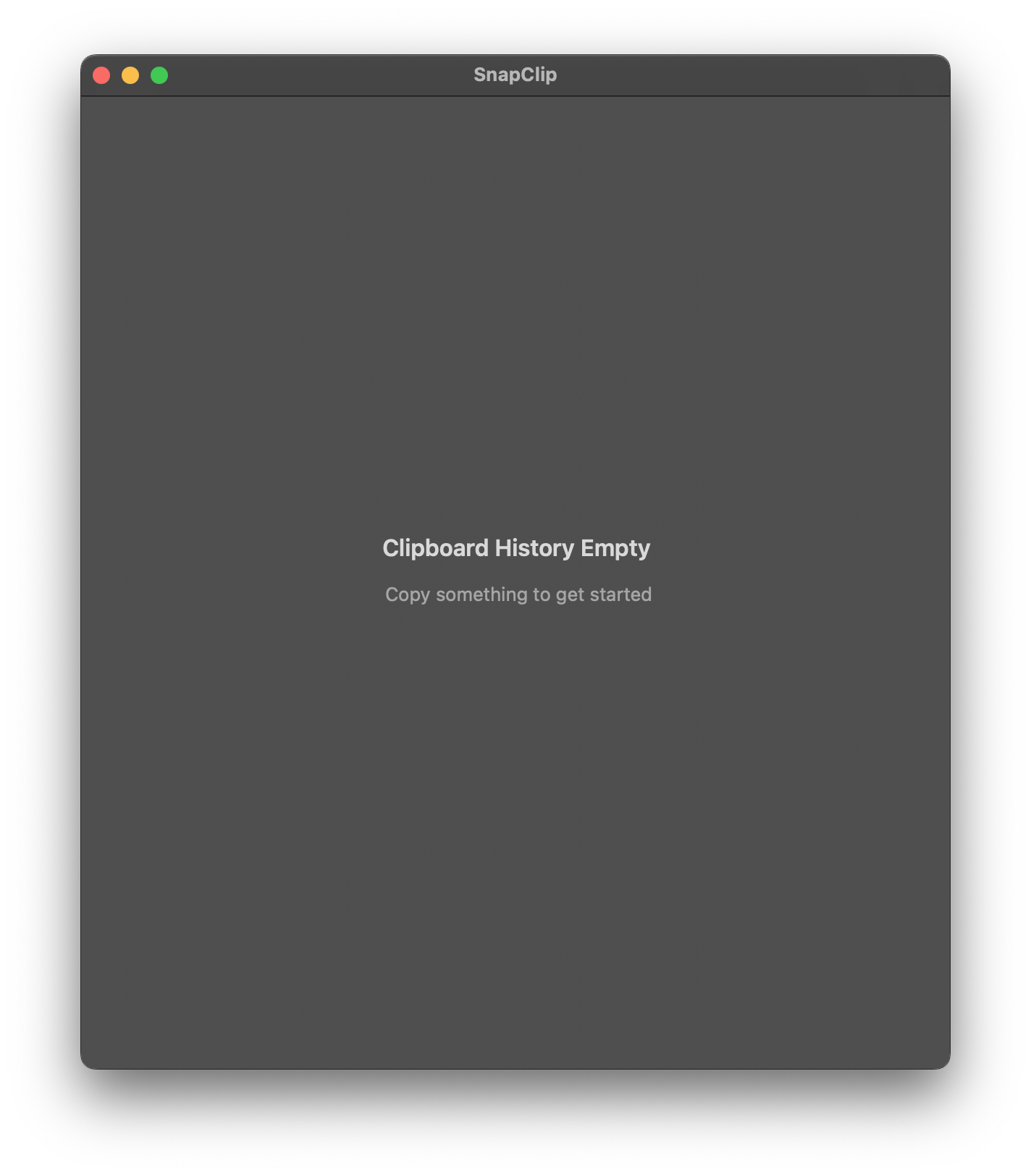
SnapClip lives in the menu bar, not the Dock. This is intentional.
Menu bar apps are invisible until you need them. Zero visual clutter. But press Alt+Cmd+/ and boom - your entire clipboard history.
Why this approach wins:
- Zero visual noise - Menu bar apps stay invisible until invoked
- Always accessible - Global hotkey works everywhere: VS Code, Safari, Slack, Notes
- Feels native - SF Symbols, dark mode support, system-level integration
- Lightweight - No Electron, no bloat
Building SnapClip: Technical Challenges
Challenge 1: Global Hotkeys on macOS
Unlike Windows, macOS doesn't provide a simple system API for global hotkeys in modern Swift. The solution? Carbon Events - 90s API that still works like magic.
var hotKeyRef: EventHotKeyRef = 0
var gMyHotKeyID = EventHotKeyID(signature: OSType(utf8: "mapp"), id: 1)

InstallEventHandler(GetEventDispatcherTarget(),
                   { (nextHandler, theEvent, userData) in
    // Handle Alt+Cmd+/ globally
    return noErr
}, 1, &spec, nil, nil)
It works everywhere - inside VS Code, Chrome, even fullscreen apps. No focus required.
Challenge 2: Accessibility Permissions
To monitor clipboard changes and respond to global hotkeys, macOS requires Accessibility permissions. Instead of failing silently, I implemented an elegant startup check:
func checkAccessibilityPermissions() {
    if !AXIsProcessTrusted() {
        // Auto-prompt on first launch
        // Direct link to System Settings
        openSystemSettings()
    }
}
Rather than silently failing, SnapClip tells users exactly what's needed and why.
Challenge 3: Pin and Sorting Logic
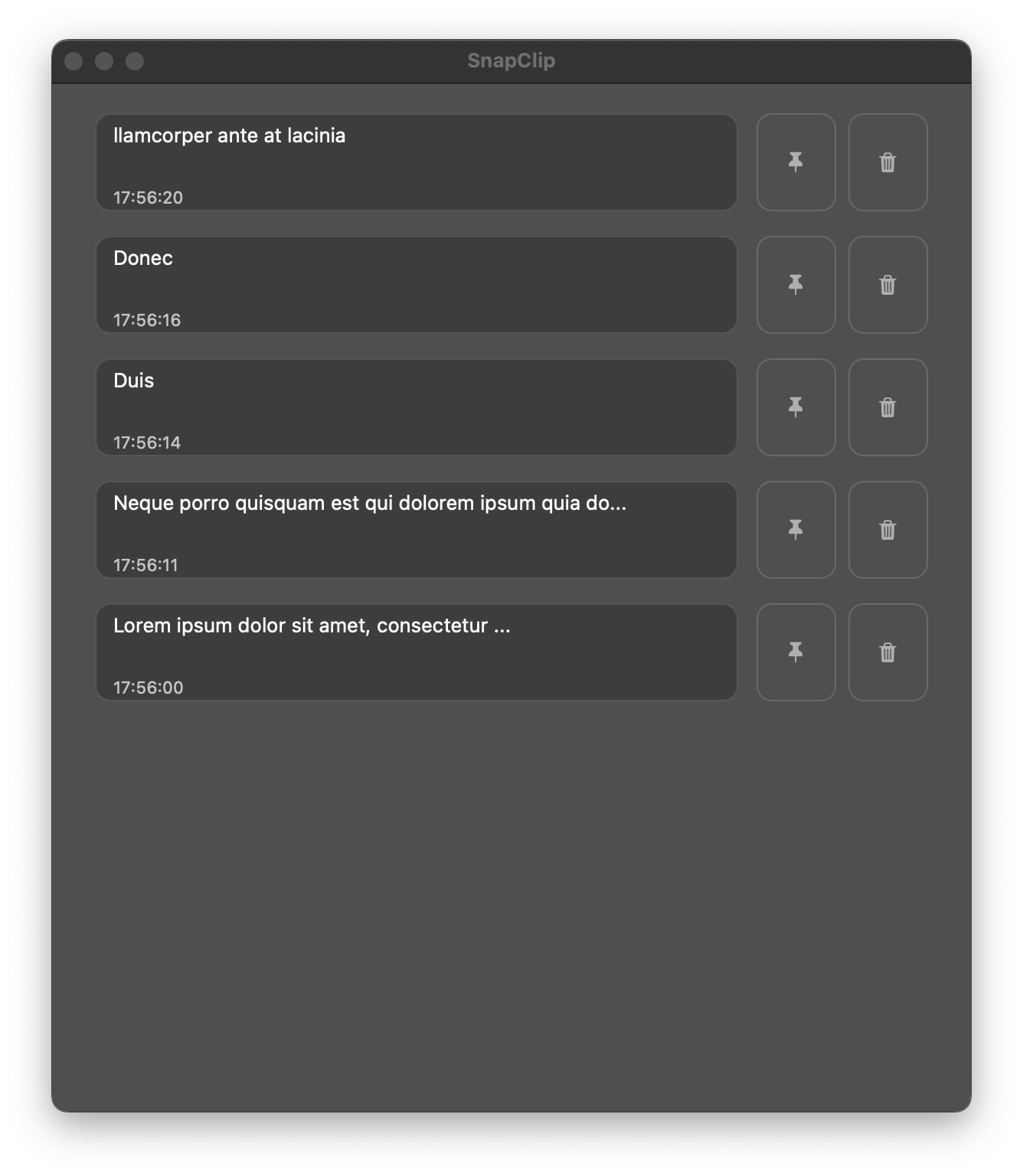
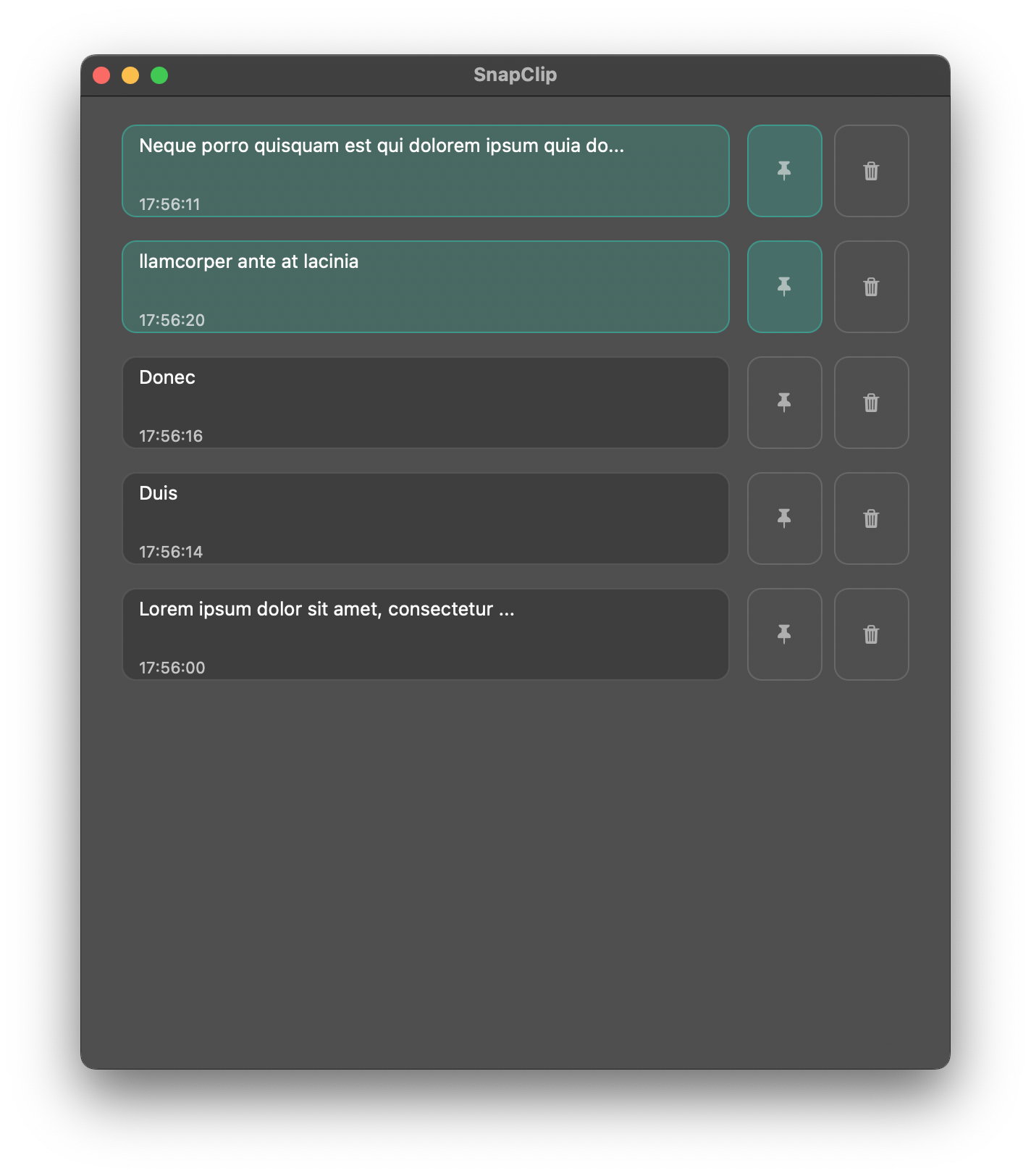
A key feature is pinning - keeping important clips at the top while maintaining chronological order for recent items:
let pinnedItems = clipboardHistory.filter { $0.isPinned }
let recentItems = clipboardHistory.filter { !$0.isPinned }
                  .sorted { $0.timestamp > $1.timestamp }

let displayOrder = pinnedItems + recentItems
This simple logic provides powerful workflow control - pin API keys, error messages, code snippets, frequently-used responses.
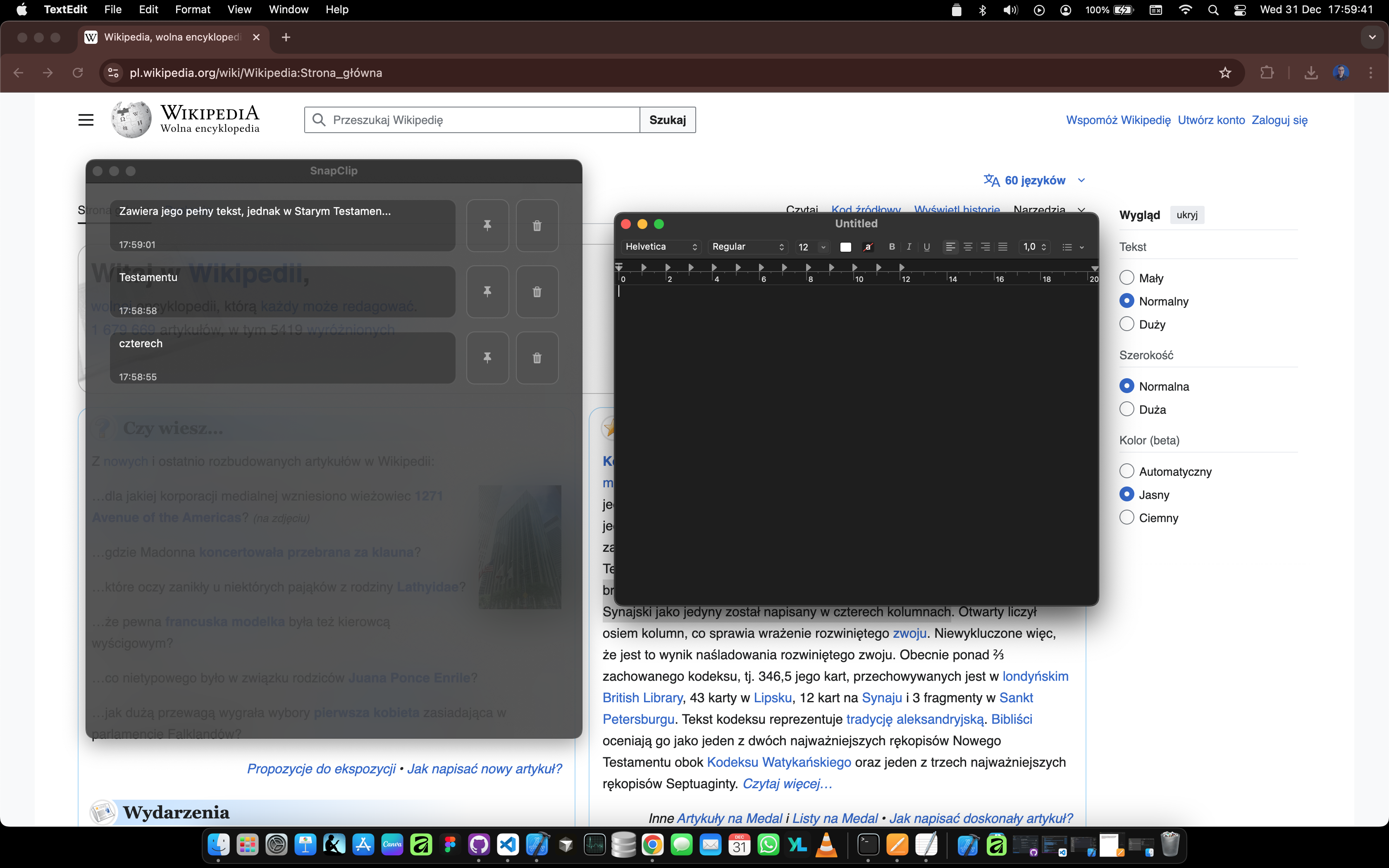
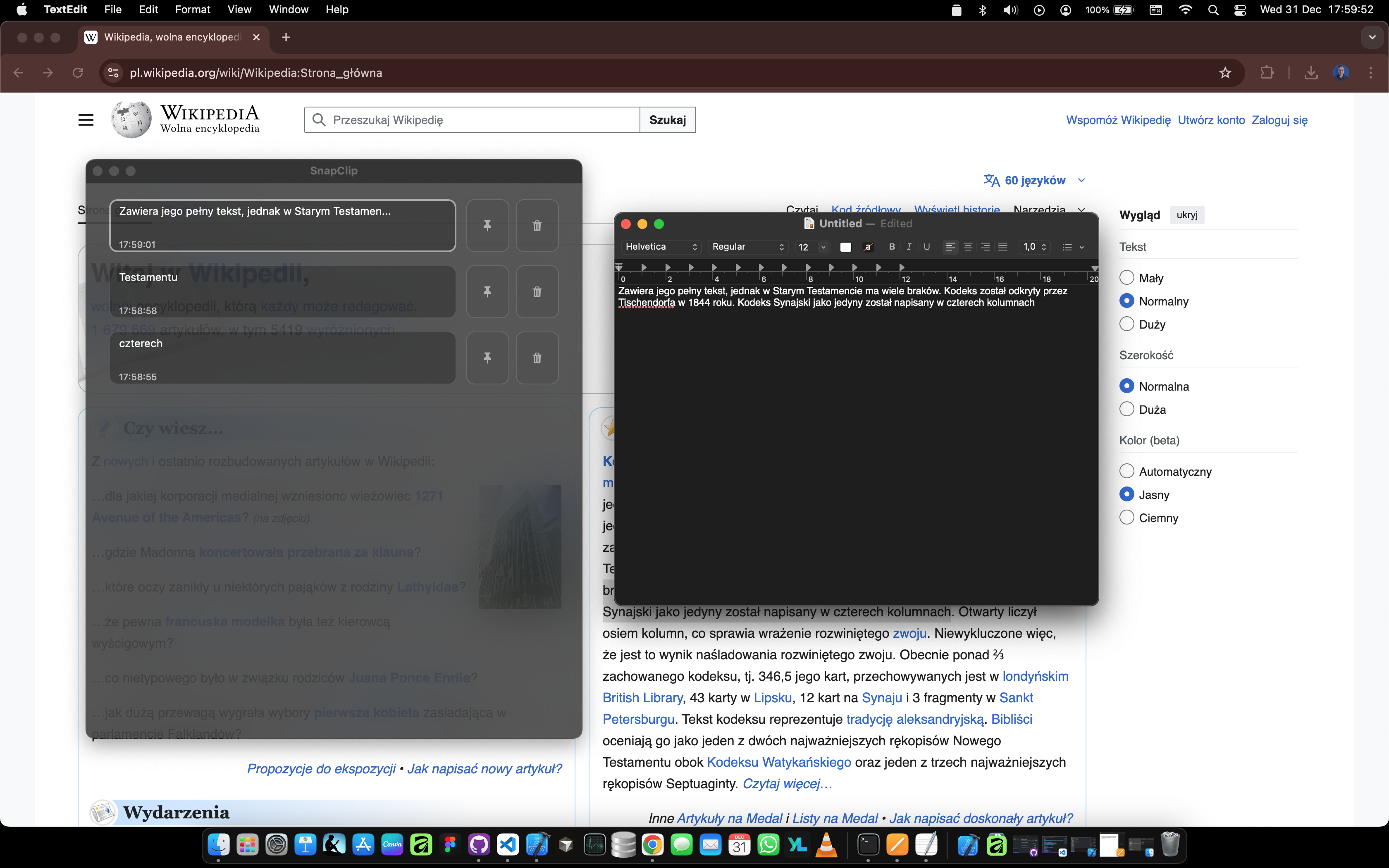
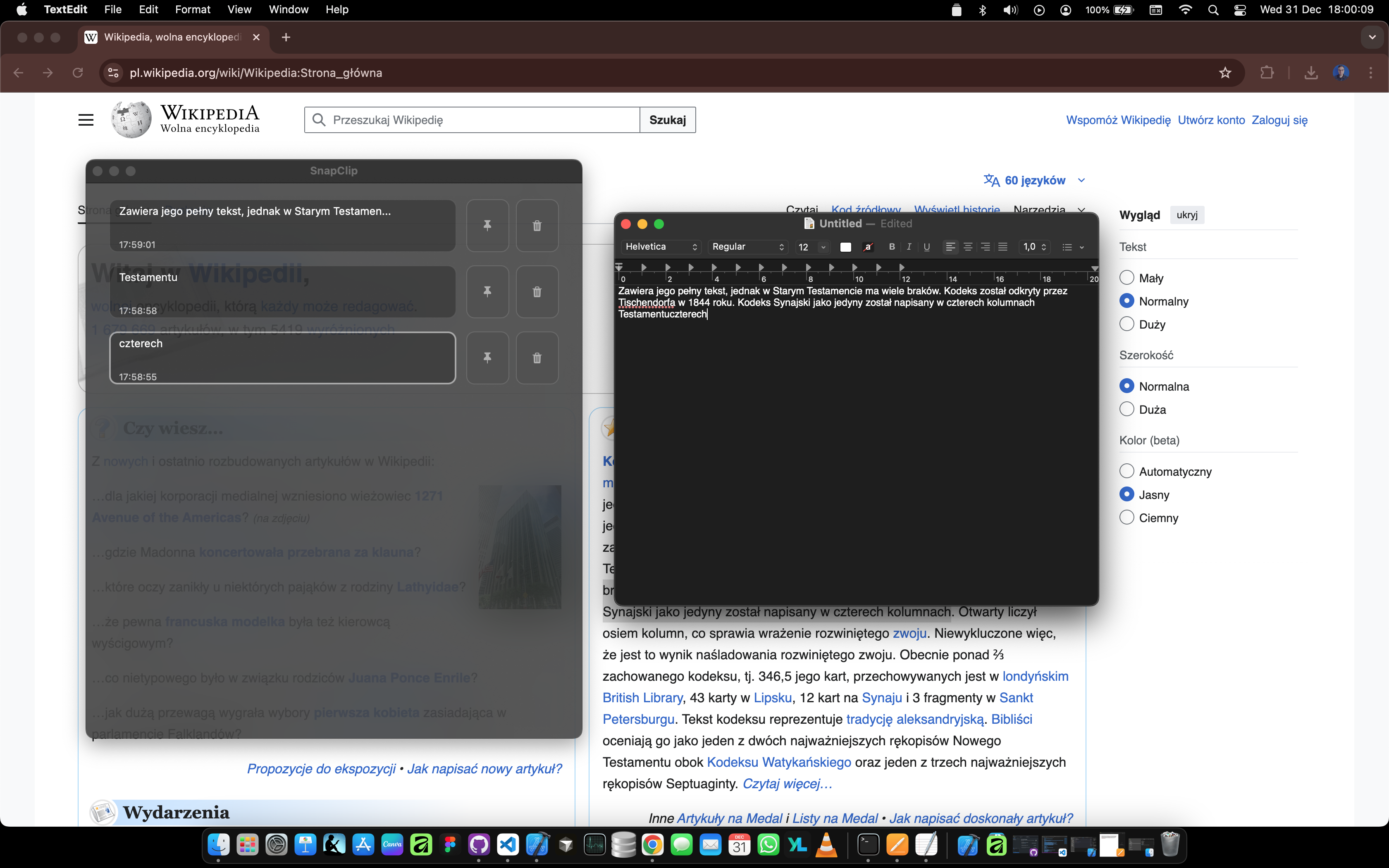
SnapClip in Action
User scenario: You're copying text fragments from Wikipedia to paste into Notes.
Without SnapClip:
- Copy text 1
- Copy text 2
- Copy text 3
- "Wait, I needed text 1"
- Navigate back to Wikipedia
- Find text 1
- Copy again
With SnapClip:
- Copy text 1, 2, 3 (auto-saved)
- Press Alt+Cmd+/ to open history
- Click text 1
- Pasted to Notes
- Done. 5 seconds total.
Menu Bar Features
Menu bar apps have minimal attack surface - only essentials:
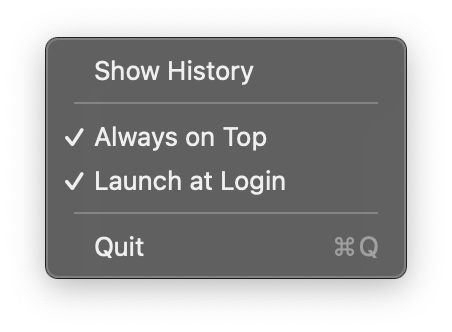
- Show History - Toggle the window
- Always on Top - Keep window visible
- Launch at Login - Auto-start with system
- Quit - Close SnapClip
No subscriptions. No upsell. No "premium features". Just functionality you need.
Why This Matters for macOS
macOS prides itself on elegant, focused design. Yet clipboard management was left to third parties for over a decade.
SnapClip proves that native tools can be lightweight and elegant. No Electron. No subscriptions. No dark patterns.
Just Swift + AppKit + good design.
| Metric | Value |
|---|---|
| Binary size | ~5 MB |
| Memory usage | <50 MB |
| macOS support | 12+ (Monterey+) |
| External dependencies | 0 |
| License | MIT |
Open Source Matters
I released SnapClip on GitHub (MIT License) because:
- Transparency - Users can verify security (no cloud, no tracking)
- Trust - Source code is auditable
- Community - Developers can contribute improvements
- Longevity - If I stop maintaining it, others can fork it
This is the opposite of subscription software that disappears when the company fails.
Download SnapClip v1.0.0
Production Ready Menu Bar Clipboard Manager
Download SnapClipInstallation:
- Download
SnapClip.app - Double-click to install
- Grant Accessibility permissions on first launch
- Press
Alt+Cmd+/- ready!
Requirements:
- macOS 12+ (Monterey+)
- Accessibility permissions (auto-prompt)
Roadmap
- v1.1: Search and filtering
- v1.2: iCloud sync - synchronize clips across your Macs
- v2.0: Multiple workspaces and tabs
- Later: Custom hotkey configuration, keyboard-only navigation
About SnapClip
SnapClip is a lightweight, native menu bar clipboard history manager for macOS 12+. It monitors your clipboard, stores unlimited history, and provides instant access via global hotkey Alt+Cmd+/.
Features include pinning important clips (API keys, error messages, code snippets), chronological sorting, and zero tracking or cloud uploads. Everything stays local and private.
SnapClip is released under the MIT License and is available on GitHub at github.com/janjedrzejak/SnapClip
About the Development
Built with: Swift 5.7+, AppKit, Carbon Events API
Development time: Several months focused on native APIs, minimal dependencies, and user-first design
Key principles: Privacy-first (no cloud), lightweight (5MB binary), native feel (SF Symbols, dark mode), zero external dependencies
Continue the Conversation on LinkedIn
Interested in native macOS development, lightweight tools, or how to solve problems that Apple overlooks? Share your thoughts and let's discuss the future of macOS applications.
Connect on LinkedInJoin the conversation with digital professionals exploring macOS development, software engineering, and open-source tools.